Streamlining Your Workflow: Mastering Productivity Apps on iPhone After Android
The Productivity Shift: From Android to iPhone
Making the switch from an Android device to an iPhone involves more than just transferring contacts and photos. For many, a significant part of their digital life revolves around productivity apps—notes, documents, spreadsheets, and calendars. Android users often rely heavily on Google's robust ecosystem, including Google Docs, Sheets, Keep, and Tasks. While these Google applications are readily available on iOS, understanding and leveraging Apple's native productivity suite can unlock a more integrated and often more streamlined experience on your new iPhone.
Editor's pick: Android-to-iPhone migration accessories on Amazon → As an Amazon Associate, this site earns from qualifying purchases.
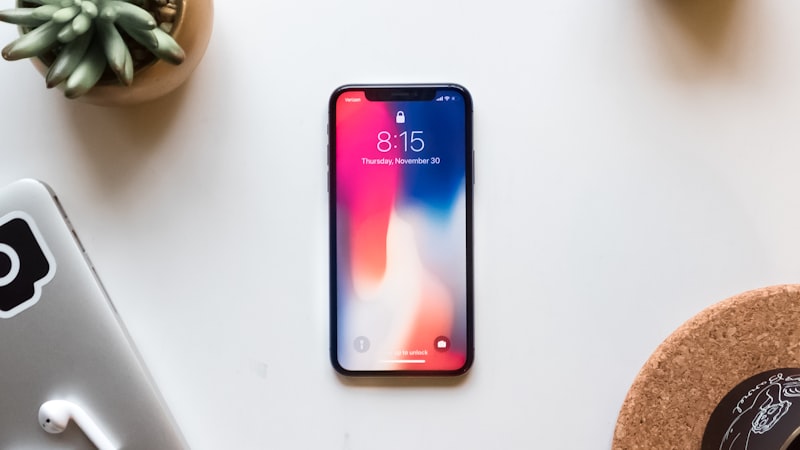
This guide will walk you through adapting your productivity workflow, comparing the familiar Android-centric tools with their powerful iPhone equivalents, and offering strategies to ensure a smooth transition.
Core Office Suites: Google Workspace vs. Apple iWork
Google Docs, Sheets, and Slides on iPhone
Your existing Google documents, spreadsheets, and presentations are not lost when you switch to an iPhone. The Google Docs, Sheets, and Slides apps are fully functional and downloadable from the App Store. You can continue to create, edit, and collaborate on your files just as you did on Android, with seamless integration with Google Drive. For many, maintaining this consistency is a primary concern, and Apple's platform supports it without issue.
Embracing Apple Pages, Numbers, and Keynote
However, Apple offers its own sophisticated suite of office applications: Pages (word processing), Numbers (spreadsheets), and Keynote (presentations). These apps are free, deeply integrated with iOS and iCloud, and offer a distinct user experience designed to work seamlessly within the Apple ecosystem. They excel in design, ease of use, and collaboration features, particularly when sharing with other Apple users. For document creation and editing, Pages offers robust features for text and layout, while Numbers provides powerful yet intuitive spreadsheet tools, and Keynote delivers professional-grade presentations.
While directly migrating complex documents between Google Workspace and iWork can sometimes involve minor formatting adjustments, both suites support standard file formats like .docx, .xlsx, and .pptx. For new projects, considering iWork can lead to a more cohesive iPhone experience.
Notes and Reminders: Google Keep vs. Apple Notes & Reminders
Your Familiar Google Keep
Google Keep's colorful, flexible notes and lists are a staple for many Android users. The Keep app is available on iOS, allowing you to access all your existing notes, set reminders, and maintain your established system. This ensures continuity for quick thoughts and to-do lists.
Unlocking the Power of Apple Notes and Reminders
Apple Notes has evolved into a surprisingly powerful application, offering much more than simple text notes. It supports rich text formatting, checklists, tables, image and video embedding, document scanning, and even drawing with an Apple Pencil (on compatible devices). Notes can be organized into folders, locked for privacy, and shared for collaboration. Its deep integration with iCloud means your notes are always synced across your Apple devices.
For dedicated task management, Apple Reminders provides a robust solution. You can create smart lists that automatically filter tasks based on criteria like date, location, tags, or flagged status. Reminders integrate with Siri for quick entry, and location-based reminders are incredibly useful for tasks tied to specific places, such as "remind me to buy milk when I leave work." Migrating from Google Keep to Apple Notes or Reminders typically involves manual transfer or using third-party tools for bulk exports, but the investment in learning these native apps can significantly enhance your iPhone productivity.
Email and Calendaring: Gmail/Google Calendar vs. Apple Mail/Calendar
While the standalone Gmail and Google Calendar apps are excellent and widely used, iPhone's native Mail and Calendar apps offer a level of system integration that can streamline your daily interactions. Setting up your Google accounts within Apple Mail and Calendar is straightforward, allowing you to access all your emails, events, and contacts through these native applications.
The benefits include unified notifications, seamless integration with Siri for scheduling and email management, and consistent visual design across the operating system. For instance, creating an event directly from a Mail message or having Siri suggest calendar entries based on your messages works effortlessly. Widgets for Mail and Calendar also provide quick glances at your inbox and upcoming schedule directly from your Home Screen or Today View.
Cloud Storage Integration: Google Drive vs. iCloud Drive
Both Google Drive and iCloud Drive coexist harmoniously on your iPhone. Google Drive remains your go-to for files stored within the Google ecosystem, and its app provides full access. However, iCloud Drive is Apple's native cloud storage solution, deeply woven into iOS. It powers the synchronization of your Apple Notes, Reminders, and iWork documents, ensuring they are always up-to-date across your iPhone, iPad, and Mac.
For new files and documents created within Apple's ecosystem, saving them to iCloud Drive often provides the most seamless experience, especially when collaborating or accessing them from other Apple devices. While your existing Google Drive files remain accessible, exploring iCloud Drive for new content can consolidate your Apple-centric workflow.
Beyond the Basics: Discovering New Productivity Tools
The App Store offers a vast array of productivity applications beyond the core suites. From advanced project management tools to specialized note-taking apps and focus timers, you'll find alternatives that might even surpass what you were accustomed to on Android. Take some time to explore categories like "Productivity," "Business," and "Utilities" to discover new favorites that fit your evolving workflow on iPhone.
Conclusion: Adapting for an Integrated Experience
Transitioning your productivity workflow from Android to iPhone is an opportunity to re-evaluate and optimize your digital habits. While you can certainly continue using your familiar Google apps, embracing Apple's native alternatives—Pages, Numbers, Keynote, Notes, Reminders, Mail, and Calendar—can lead to a more deeply integrated, efficient, and consistent experience across your new iPhone. Take the time to experiment with these tools; you might find they offer a level of synergy that enhances your daily productivity in unexpected ways.