Navigating Subscriptions and In-App Purchases on iPhone: A Guide for Android Switchers
Seamless Financial Transition: Managing Your Digital Purchases on iPhone
Switching from an Android device to an iPhone involves adapting to a new operating system, new gestures, and a new ecosystem. While many guides focus on migrating photos, contacts, and WhatsApp chats, a crucial, often overlooked aspect is the management of your digital subscriptions and in-app purchases. Your financial relationship with apps changes significantly when moving from the Google Play Store to the Apple App Store. Understanding these differences is key to a smooth transition, preventing double charges, and ensuring you maintain access to your favorite services.
Editor's pick: Android-to-iPhone migration accessories on Amazon → As an Amazon Associate, this site earns from qualifying purchases.
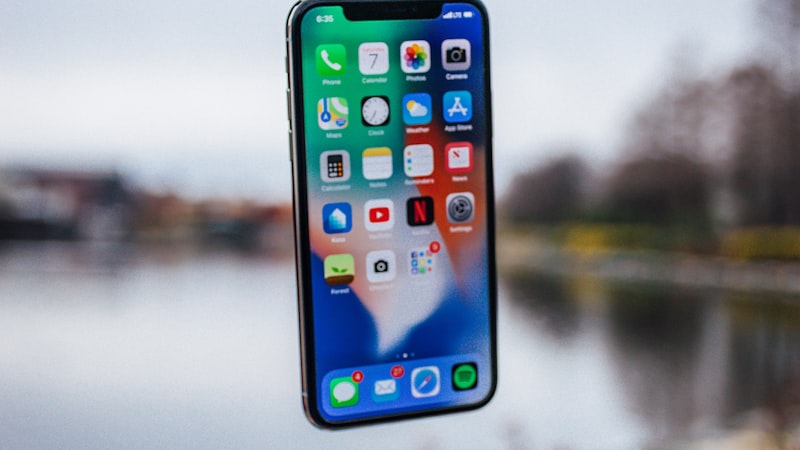
Understanding the Apple App Store Ecosystem
On Android, your digital purchases and subscriptions are tied to your Google Account and managed through the Google Play Store. On iPhone, this role is taken over by your Apple ID and the App Store. Your Apple ID serves as your universal credential for all Apple services, including app downloads, purchases, iCloud, and more. When you set up your new iPhone, linking a payment method to your Apple ID is one of the first steps. This can include credit or debit cards, an Apple ID balance (from gift cards), carrier billing in some regions, or PayPal. Family Sharing also allows you to share eligible purchases and subscriptions with up to five other family members, centralizing billing to the organizer's payment method.
Migrating Existing Android Subscriptions: A Crucial Step
This is perhaps the most vital point for any Android switcher: subscriptions purchased via the Google Play Store DO NOT automatically transfer to your new iPhone and the Apple App Store. This means if you have an active subscription for a service like a premium news app, a fitness tracker, or a streaming service that was managed directly through Google Play, you will need to actively migrate it.
Before you even think about subscribing to the same service on your iPhone, you must first identify and cancel your existing Android subscriptions. You can do this by opening the Google Play Store app on your old Android phone, tapping your profile icon, then navigating to “Payments & subscriptions” and then “Subscriptions.” Review this list carefully. For each active subscription you intend to continue using on your iPhone, ensure you cancel it on Android to prevent being charged by both Google and Apple simultaneously.
Once cancelled on Android, you can then proceed to subscribe to the service again directly through the respective app on your iPhone, which will then link the subscription to your Apple ID and manage it via the App Store. Services like Netflix, Spotify, or Adobe Creative Cloud, where the subscription is managed directly through their own websites rather than the app store, are exceptions; these typically transfer seamlessly as long as you log in with your existing account.
Subscribing on iPhone and Managing Your Digital Wallet
When you download an app on your iPhone that offers premium features or content, you'll typically be prompted to subscribe or make an in-app purchase. Subscriptions via the App Store are straightforward: you'll see pricing details, trial periods (if offered), and the recurring charge frequency. Apple clearly outlines the terms, and once confirmed, the subscription is linked to your Apple ID and charged to your primary payment method on file.
To manage all your App Store subscriptions, go to Settings > [Your Name] > Subscriptions. Here, you'll find a comprehensive list of all your active, expired, and upcoming renewals. From this menu, you can:
- Cancel an active subscription.
- Change your subscription plan (e.g., from monthly to annually).
- Restore a subscription if you previously cancelled it.
- View billing dates and pricing details.
This centralized management differs from the Google Play Store, where you might have to navigate through various menus or even individual apps to find all your subscriptions. The iPhone's approach offers a clear, single point of control.
Understanding In-App Purchases (IAPs)
Beyond subscriptions, in-app purchases cover a wide range of digital content, from one-time unlocks of premium features (like ad removal or full game versions) to consumables (like in-game currency or extra lives). One-time, non-consumable purchases are typically tied to your Apple ID and can often be restored if you reinstall an app or switch to a new iPhone. Consumables, by their nature, are generally used up and cannot be restored. The App Store's payment security ensures that every purchase requires authentication via Face ID, Touch ID, or your Apple ID password, adding a layer of protection against unauthorized spending.
Key Differences and Practical Tips for Switchers
- Account Centralization: Your Apple ID is your financial hub for apps on iPhone, much like your Google Account was for Android. Ensure its security with a strong password and two-factor authentication.
- Refund Policies: Both Apple and Google offer refund policies, but the processes can differ. Familiarize yourself with Apple's refund request process via reportaproblem.apple.com if you encounter an issue with an App Store purchase.
- Review Payment Methods: Double-check the payment method linked to your Apple ID to ensure it's current and preferred.
- Cross-Platform Services: For services like YouTube Premium, Spotify, or Microsoft 365, where you subscribed directly through the service's website, your subscription will typically carry over simply by logging into the app on your iPhone. You won't need to re-subscribe via the App Store.
- Family Sharing vs. Multiple Google Accounts: While Android often allows multiple user profiles or easy switching between Google accounts for different app libraries, iPhone's approach is single-user focused, with Family Sharing handling shared purchases and content.
Conclusion
The transition to iPhone brings many exciting new features and a streamlined user experience. By proactively managing your existing Android subscriptions and understanding how purchases work within the Apple App Store, you can ensure your financial journey is as smooth and stress-free as the rest of your switch. Take the time to audit your digital spending on your old device, cancel what's no longer needed, and then enjoy the simplicity of Apple's unified subscription management.