Every year, millions of Android users make the move to iPhone. Some are drawn by the Apple ecosystem, others by longer software support or stronger privacy defaults. Whatever the reason, the switch does not have to be painful — but it does require planning.
Editor's pick: Android-to-iPhone migration accessories on Amazon → As an Amazon Associate, this site earns from qualifying purchases.
Why People Switch
The reasons tend to cluster around four themes. The Apple ecosystem is a major draw: if you own a Mac, iPad, or Apple Watch, an iPhone connects seamlessly through Handoff, AirDrop, and Universal Clipboard. Privacy is another factor, with iOS offering granular app tracking controls and on-device processing for many features. iPhones also receive major software updates for five to six years, outlasting most Android devices. And many users simply prefer the consistency of how iOS works, even if it comes with less flexibility.
Pre-Switch Preparation
Before touching your new iPhone, back up your Android data through Google One or Google Drive under Settings, then Google, then Backup. Make a list of daily apps and verify that iOS versions exist — most major apps are cross-platform, but niche tools like custom launchers or certain regional banking apps may lack equivalents. If you use two-factor authentication apps, ensure your accounts are synced to the cloud before wiping your old phone.
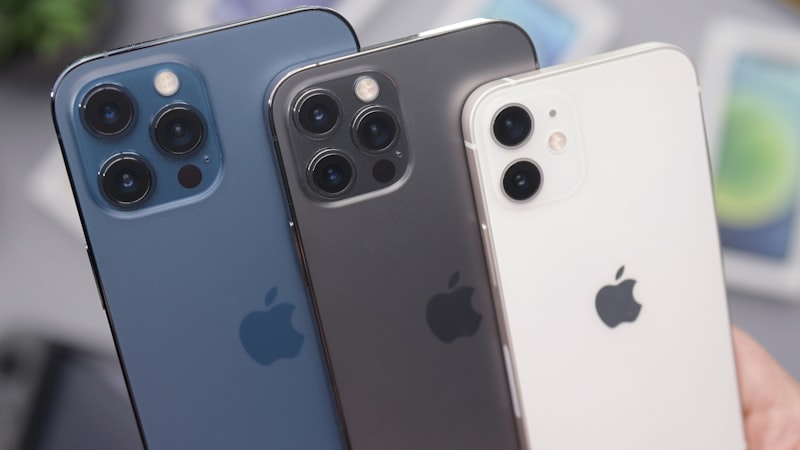
The ecosystem switch is bigger than any single feature
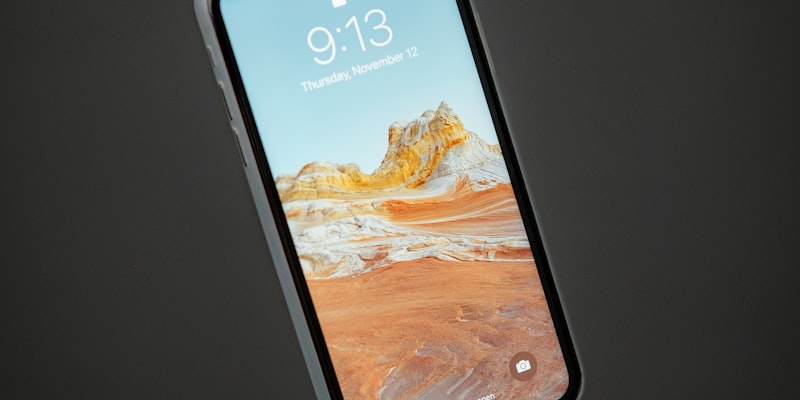
Photo: Unsplash
Using the Move to iOS App
Apple's free Move to iOS app is the most straightforward migration path. Run it during initial iPhone setup with both devices on the same Wi-Fi network. It transfers contacts, message history, photos, videos, bookmarks, mail accounts, and calendars. It also suggests iOS apps matching those on your Android device. However, it does not transfer music files, documents, app data, or WhatsApp history. Critically, it only works during initial setup — if you have already completed setup, you would need to factory reset to use it.
Manual Transfers: WhatsApp, Photos, and Music
WhatsApp supports direct chat migration from Android to iPhone. In the Android app, go to Settings, then Chats, then Move Chats to iPhone. Text messages, photos, and voice messages transfer, though call history does not. For photos, install Google Photos on your iPhone and sign in with the same account for immediate access to your library. If you use a streaming music service, simply install the app and log in. Local music libraries can be synced via Apple Music on Mac or iTunes on Windows.
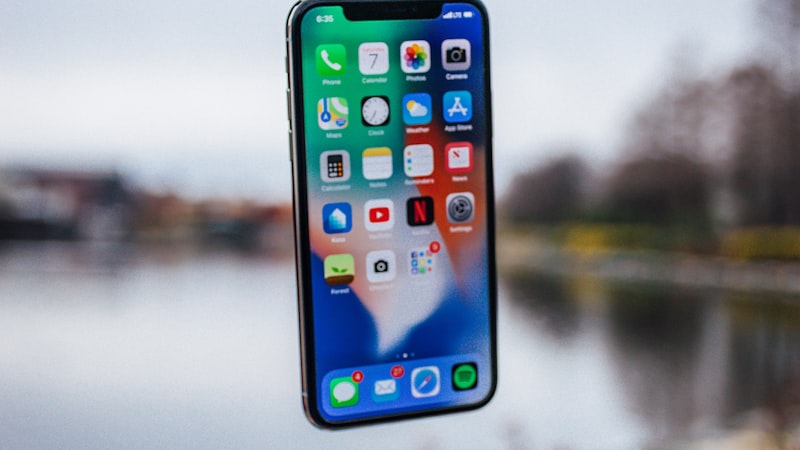
What matters most is what you gain, not what you leave behind
Key Differences to Expect
- Notifications: iOS groups notifications by app and may deliver them as summaries. Adjust this per app under Settings, then Notifications.
- File management: The Files app exists but does not expose a full filesystem. Cloud services like iCloud Drive and Google Drive integrate into it.
- Customisation: Widgets and free icon placement are supported, but launcher replacements and icon packs are not available.
- Default apps: iOS 18 and later let you set third-party defaults for browsing, email, messaging, calls, and navigation under Settings, then Apps.
- Back navigation: There is no back button. Swipe from the left edge of the screen instead.
Recommended from our network
Tips for Your First Week
Set up iCloud and enable iCloud Keychain for password management during initial setup. Turn on Find My iPhone immediately, then review privacy settings under Settings, then Privacy and Security. All major Google apps — Gmail, Maps, Calendar, Drive — work well on iOS and can be set as defaults, so you do not have to abandon your Google account. Learn the core gestures early: swipe down from the top-left for notifications, top-right for Control Centre, and up from the bottom to go home.
Common Frustrations and Workarounds
The ecosystem switch is bigger than any single feature
The inability to sideload apps is the most common complaint. iOS requires the App Store (or, in the EU, approved alternative marketplaces), so check whether apps you installed via APK have official iOS versions or web alternatives. iMessage can be a sticking point: it works transparently in regions where it dominates, but if you later leave iPhone, remember to deregister iMessage using Apple's online tool to avoid missed texts. For file transfers, all iPhones from the 15 onward use USB-C, connecting directly to computers via Finder or the Apple Devices app. For wireless transfers between platforms, AirDrop works within Apple devices, while LocalSend handles cross-platform needs.
The gap between Android and iOS has narrowed considerably. With methodical preparation and realistic expectations, most people find themselves comfortable within a week.